PASOE
Managing PASOE servers in a modern and graphical interface
Platform Support
Supported
- VS Code
- Open VSX
- Windows
- Linux (.deb)
Coming Soon
- Flatpak
Research
- macOS
Documentation
OpenEdge PASOE — Quick Start
Manage your Progress Application Server for OpenEdge (PASOE) servers from inside VS Code. Configure, monitor and inspect ABL applications without leaving the editor.
Prerequisites
| Requirement | Details |
|---|---|
| VS Code | 1.96 or newer |
| PASOE server | A running Progress Application Server for OpenEdge (OEManager must be accessible) |
| Credentials | Server username and password (default: tomcat / tomcat) |
| Network access | VS Code must be able to reach the OEManager HTTP(S) port on the PASOE host |
Install
Install OpenEdge ABL - PASOE from the VS Code Marketplace or from the .vsix file provided by your team.
Configure a server
Open VS Code Settings (Ctrl+,) and search for openedge-pasoe.servers. Add one entry per server:
"openedge-pasoe.servers": [
  {
    "name": "Development Server",
    "host": "localhost",
    "port": 8810,
    "transport": "http",
    "authType": "basic",
    "username": "tomcat",
    "password": "tomcat"
  }
]
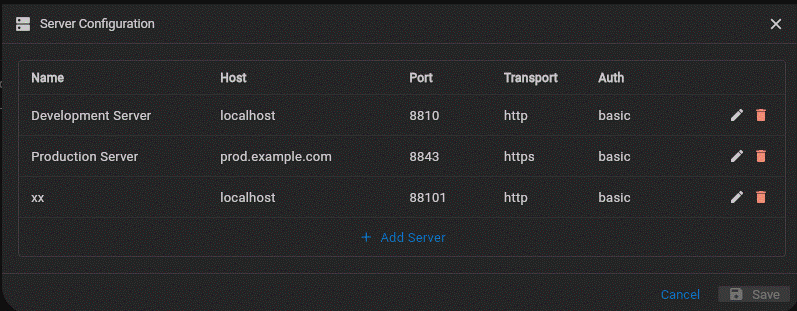
You can also add and edit servers from inside the PASOE UI — see Settings in the sidebar.
Open PASOE
Two ways to launch it:
- Command palette —
Ctrl+Shift+P→ Launch OpenEdge PASOE configuration 😎 - Right-click any file in the Explorer → select the PASOE command.
The UI opens as a full editor tab and connects immediately to the configured servers.
What you can do
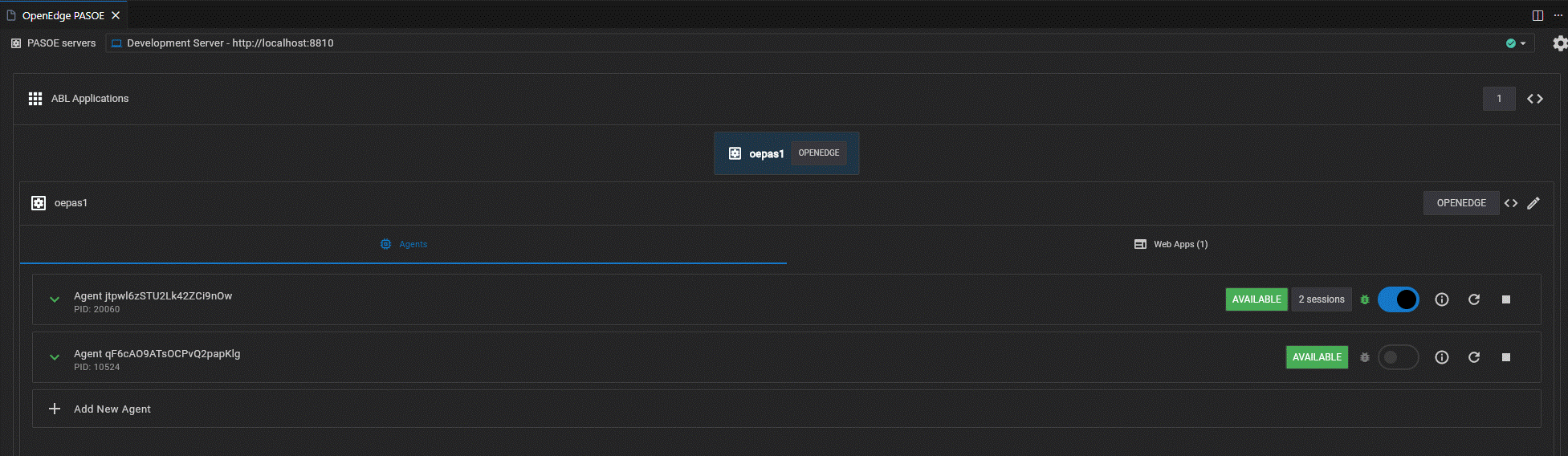
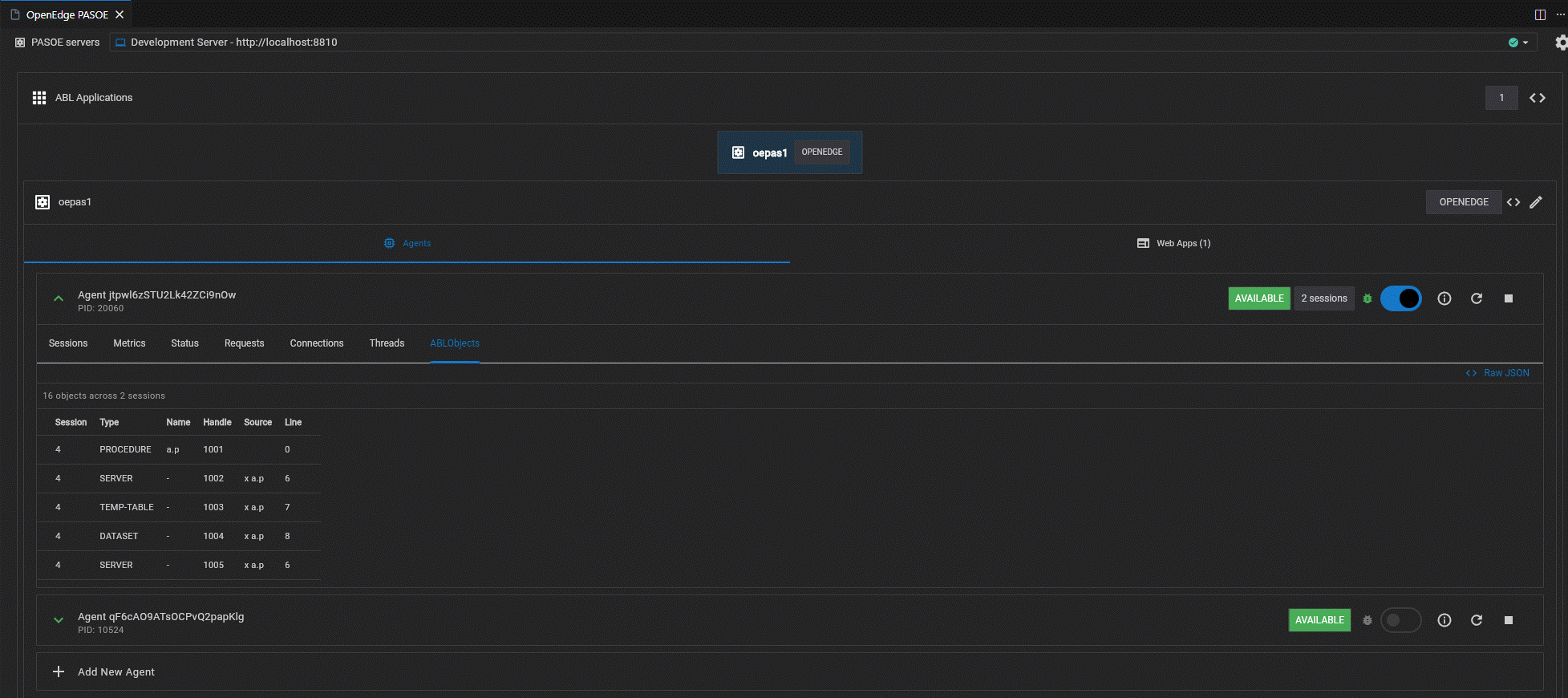
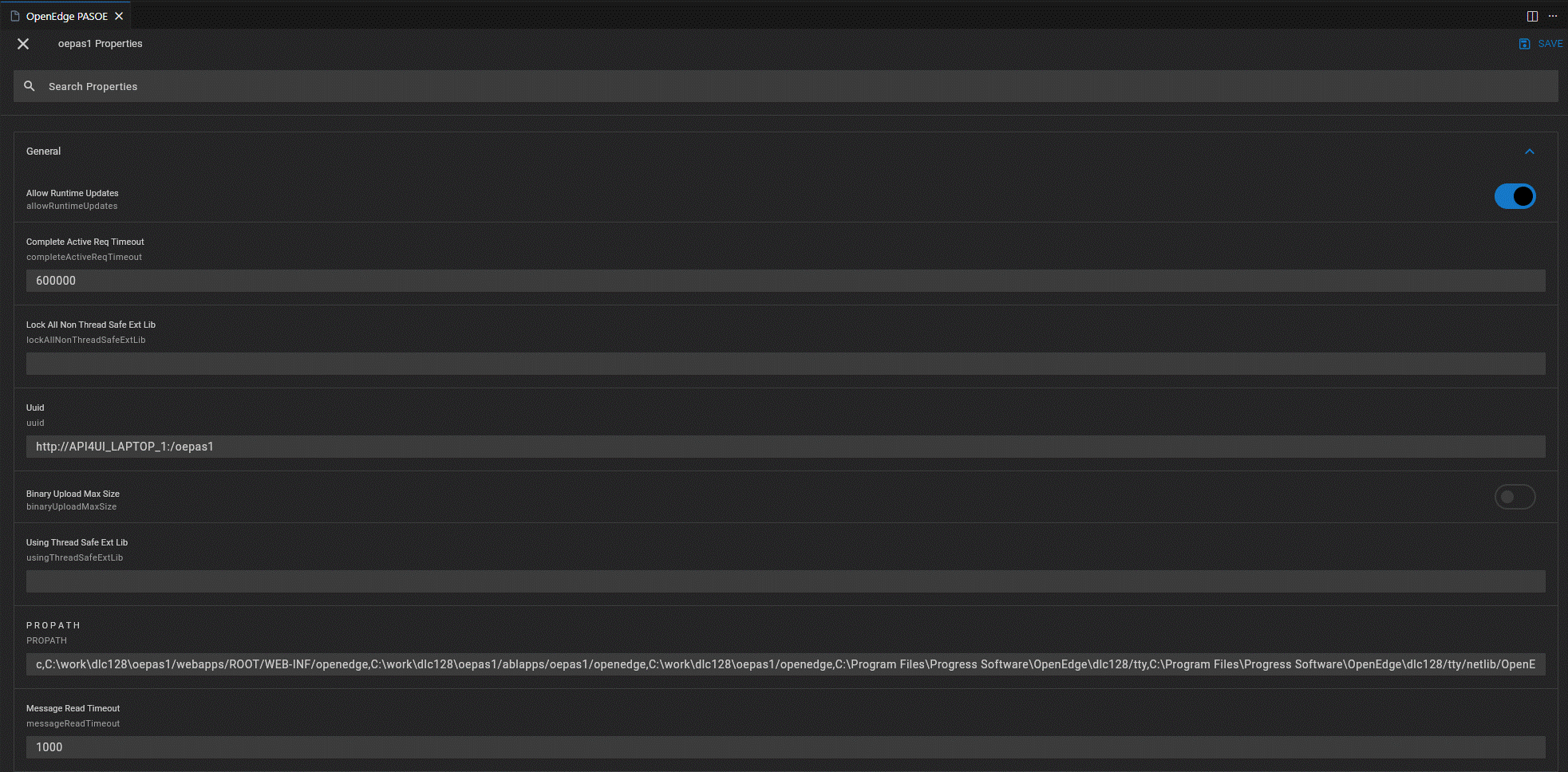
- Monitor all configured servers and see real-time status at a glance.
- Browse ABL applications deployed on each server.
- Configure multiple servers with HTTP/HTTPS and Basic authentication.
- Add, edit or remove server entries directly from the UI.
See USERGUIDE.md for a full feature reference.